Printing at Morris Library
General Info
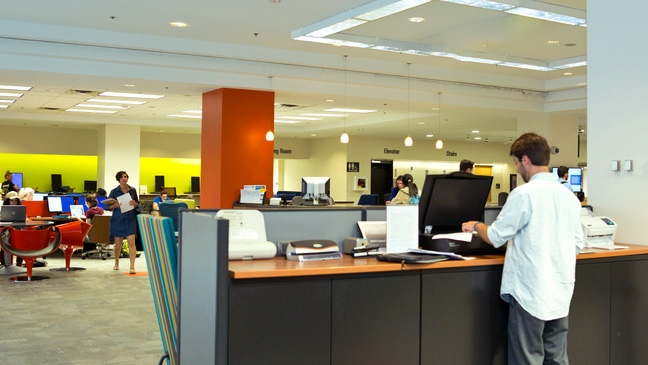
- There is one color and one black/white (B/W) printer in the Information Room on the first floor of Morris Library. You may print single-sided or double-sided on either type of printer. Fees may apply based on the type of printer you choose if you have exceeded your semester printing allocation.
- You can print from your Mac laptop or other Apple device, from your Windows, Chrome or Android device, or you may use one of the computers located in our Information Room to open the material that you want to print and send it to the campus cloud printing system where it can be released at any print release station.
- If you have a Mac laptop or Windows, Chrome or Android device, you can set up our printers so that you can send your print jobs directly from your computer or device to the nearest print release station each time you print in Morris Library.
To Print Using a Morris Library Computer
- In the browser, log in to GSuite, OneDrive, or another cloud-based system where your document is located.
- Select Print from the application.
- Choose a printer from the drop-down based on whether you want black/white vs. color, and single-sided vs. double-sided (one-sided, one-sided-color-ps, two-sided, two-sided-color-ps). See print fees for each type of printing.
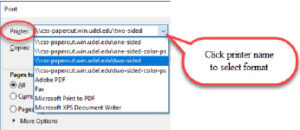
- Change any other print settings and click Print.
- You will see the Papercut Login box. Login with your UD username and password if you have a UD ONECard. Do not include “@udel.edu” in the username. If you have a Library Copy Card, enter the 6 digit card ID as both the username and the password.
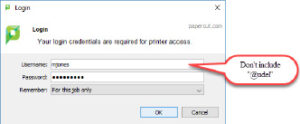
- Click Print to send your print job to the print queue.
- Follow the instructions below to release your print job from the queue (print it out).
- Be sure to log out before leaving the computer.
To Print Using Your Mac Laptop
- If you are sending your print job from your own Mac Laptop for the first time, you must follow the printer setup instructions below before continuing.
- Open the application that you wish to print from on the Morris Library computer, Mac laptop, or Apple device. Choose Print, and select the printer name that matches the type of printing you want from the list (different fees may apply):
Single-sided B/W: 0-ud1sided Double-sided B/W: 0-ud2sided Single-sided color: 0-ud1sided-color Double-sided color: 0-ud2sidedcolor - The first time you send a print job to a Library print release station from your own Mac laptop or Apple device, you will be asked for a user name and password. This is your UD username and password. If you select the box to save the information in your keychain, you will not need to enter this each time you print.
- Click Print to send your print job to the print queue.
- Follow the instructions below to release your print job from the queue (print it out).
To Print Using an Apple Device
- To print using an Apple iPhone or iPad, touch the Action icon in the app you wish to print from, then scroll down the list of actions and choose Print.
- Touch the Printer entry at the top, then scroll down the list of printers and choose one of the printer options: 0-ud1sided, 0-ud2sided, 0-ud1sided-color, or 0-ud2sided-color based on whether you want black/white vs. color, and single-sided vs. double-sided (different fees may apply):
Single-sided B/W: 0-ud1sided Double-sided B/W: 0-ud2sided Single-sided color: 0-ud1sided-color Double-sided color: 0-ud2sidedcolor - Choose your print options and touch Print. The first time you use one of these printers you will be asked for your UD username and password. Enter this information and complete the process to send your print job to the queue.
- To release the print job, see instructions below.
To Print Using a Windows, Chrome or Android Device
Non-Apple devices use the PaperCut Mobility Print app, which must be installed on your device.
- Install the PaperCut Mobility Print app on your Windows, Chrome or Android device. Part of the app installation process guides you through adding available printers, and stores your credentials for future printing.
- Available printers to add are: 0-ud1sided, 0-ud2sided, 0-ud1sided-color, or 0-ud2sided-color.
- Once you have added the printers you wish to print from, you are able to print as you normally would on your device to these printers.
- For further assistance and details, see the UD IT Knowledgebase article about printing on campus.
To Release Your Print Job (Print it from the Queue)
- Find the B/W or color printer (based on the type of printing you chose) in the Information Room on the first floor of Morris Library.
- Swipe your UD ONEcard at the display next to the printer.
- Select the jobs you want to print at that printer.
- Pick up your prints from the printer.
Mac Laptop Printer Setup
These instructions need to be followed only the first time you send your job for a specific type of printing (single-side B/W, double-sided B/W, single-sided color, double-sided color). To print with the same type of printing at a later time, you can just open your print job on your laptop and choose that printer from the list before printing.
- On your Macbook, go to System Preferences and double-click Printers and Scanners.
- Click the plus sign (+) at the bottom left of the Printers list.
- When the Add window comes up, make sure the Default button is selected at the top and look for printers called 0-ud1sided, 0-ud2sided, 0-ud1sided-color, or 0-ud2sided-color. Choose the one that matches the type of printing you need and click the Add button. The printer will be installed.
- The first time you print, you will be asked for a user name and password. This is your UD username and password. If you select the box to save the information in your keychain, you will not need to enter this each time you print.
Printing Fees
Students generally receive a $5.00 printing allocation each January and July on their UD ONECard. This free printing allocation does not purchase photocopies. After the free allocation is used, printing fees debit UD Flex accounts. Carry-over of unused free page allocation is not provided.
| Black/white page, single-sided: | $0.05 |
| Black/white page, double-sided: | $0.04 |
| Color page, per side, single- or double-sided: | $0.25 |
Other Printing Services
The Research Data and Design Commons provides large-format printing services. These are primarily geared toward the printing of research posters, but we are also able to accommodate the printing of banners and signs. Additionally, we can provide support for designing, formatting and storytelling for research posters.
Check out Large Format Poster Printing for more information.
More Information
For more information about printing at Morris Library, see our Library, Museums and Press Print/Scan pages.
For more information about printing services at University of Delaware, see the UD IT article Printing to UD IT Supported Printers.
Scanning at Morris Library
General Information
- Scanning services at Morris Library are FREE.
- Morris Library does not currently have a fax machine or copy machine available for the public.
Book ScanCenters
There are six Book ScanCenters in Morris Library: one in the Information Room, opposite the Help Center; two more in the Reference Room; and one on each of the other three floors of the Library.
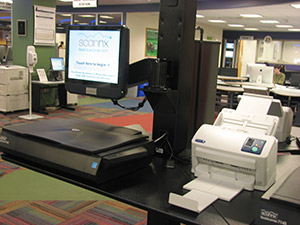
The six Book ScanCenter devices can:
- Scan books and documents into searchable PDF, Word doc, JPEG, TIFF and PNG file formats in color, greyscale, or black and white.
- Send scanned files to: email, a smartphone or tablet, or USB flash drive
Scanner use is limited to two hours per person when other users are waiting.